
Setup guide

Four steps to get coding

Follow this guide to get up and running on Windows from download to
your first connected block.

Step 01

Download the software

  1. Get the installer for your operating system from the download option above.

  2. Save RoboBlock-1.0.0-Setup.zip to your Downloads folder.

Step 02

Extracting the Downloaded Folder

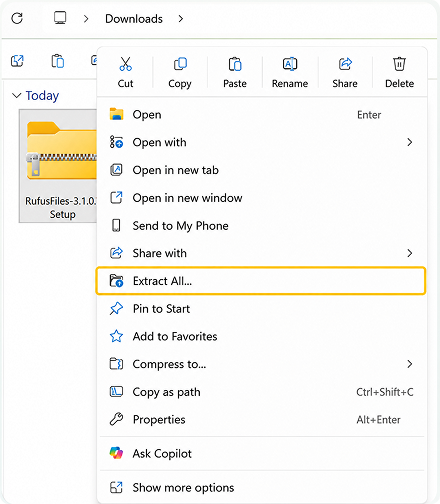
  1. Locate the File: Open your Downloads folder and look for the file named RoboBlock-1.0.0-Setup.zip

  2. Extract Content: Right-click on that folder with your mouse and click on Extract All... from the menu.

  3. Confirm Destination: A small window will pop up. Just click the Extract button at the bottom. A brand-new, open folder will pop right up on your screen, and you are ready to go.

Step 03

Installation Steps

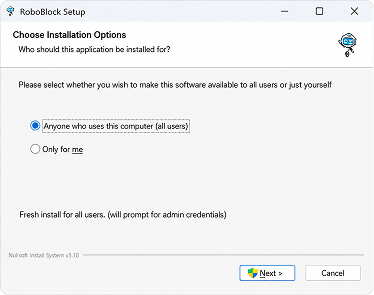
  1. Run the Installer: Double-click the downloaded RoboBlock.exe file.

  2. Choose Installation Option: Select Anyone who uses this computer or only for me and click next.

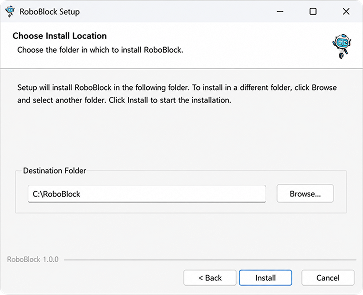
  3. Choose Location: You can keep the default path (usually C:\RoboBlock) or Click browse to change it. Click Install.

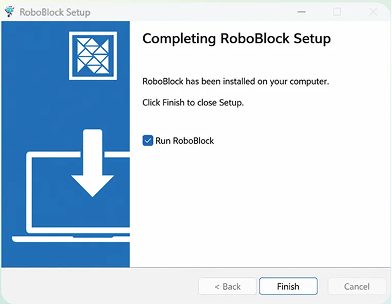
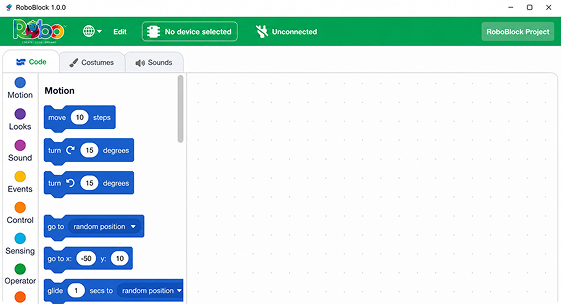
  4. Finish: Click Finish. The software will launch automatically.

Step 04

Connecting your Robo device

i.

Click the Device button on the home screen.

ii.

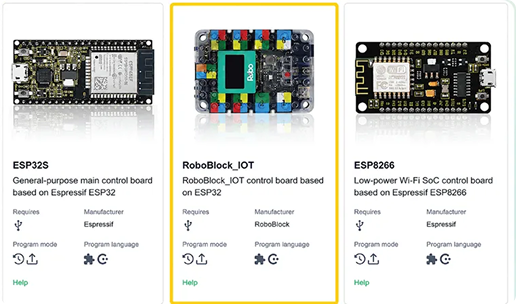
Select the RoboBlock_IOT Device.

iii.

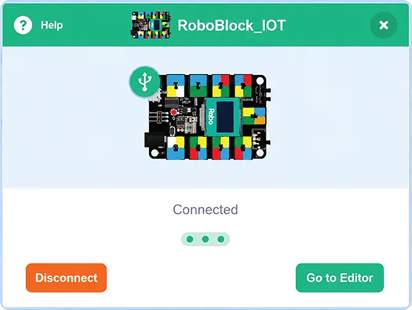
Connect the device.

  • Check the show all connectable devices box
  • Select your COM port
  • Click Connect

iv.

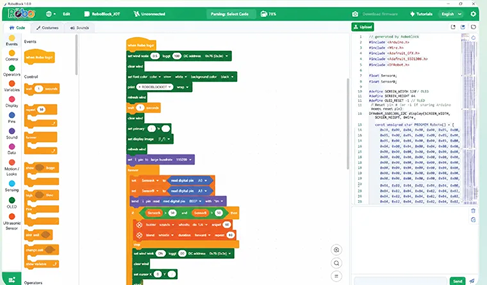
Once connected, click Go to Editor to start dragging blocks!

Stuck on something?

Quick fixes for three issues most people run into during setup.

JavaScript error when opening the application?

If the software does not open, you need to manually delete the configuration folder.

i) Press the Windows Key + R on your keyboard to open the Run dialog.

ii) Type %AppData% and press Enter.

iii) In the folder that opens, locate the folder named "RoboBlock".

iv) Right-click the folder and Delete it.

No COM port found

Try a different USB cable or a different USB port. Some "charging only" cables do not transfer data.

Upload failed

Make sure you have selected the correct Board Type in the device menu.

Let your child

explore, create, & shape the future

one robot at a time.